Why Is My IPTV Buffering or Freezing? 7 Proven Fixes for Smart TV & Firestick
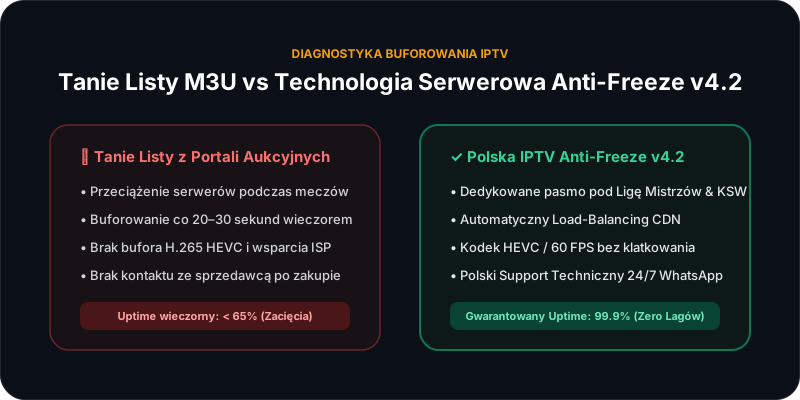
Cause #1: Overloaded Reseller Servers (Overselling)
Even a 1 Gbps fiber connection cannot fix an overloaded source server. Cheap M3U playlists sold on auction marketplaces cram thousands of users onto a single low-bandwidth server with zero load balancing. When everyone tunes into the same live sports channel at 8:00 PM, server bandwidth collapses.
The fastest diagnostic step is requesting a free 24-hour test on a dedicated Anti-Freeze v4.2 server during peak evening hours. If the test stream plays smoothly at 60 FPS on the exact same TV, your previous provider's server was the bottleneck.
7 Home Optimization Steps for Zero Lag
1. Switch from 2.4 GHz Wi-Fi to 5 GHz (or Ethernet Cable)
2.4 GHz Wi-Fi suffers heavy interference in apartments. Connect your Smart TV or Firestick to your router's 5 GHz band or plug in an Ethernet LAN cable for zero packet loss.
2. Increase Player Buffer Size
In TiviMate or IPTV Smarters Pro, open Settings → Playback / Player → Buffer Size and switch from Small to Large. Pre-buffering 3–5 seconds absorbs micro network spikes.
3. Enable Hardware Decoding (HEVC H.265)
4K UHD and 60 FPS sports feeds use H.265 compression. Set your player decoder to Hardware rather than Software so your TV's dedicated video chip handles playback smoothly.
4. Clear App Cache on Firestick & Android TV
Low storage causes stuttering on streaming sticks. Go to Settings → Applications → Manage Installed Applications and clear cache on unused apps and your IPTV player.
5. Use Fast DNS (Cloudflare 1.1.1.1 or Google 8.8.8.8)
ISP default DNS resolvers can misroute CDN traffic. Setting DNS to 1.1.1.1 improves CDN node selection and speeds up channel switching.
6. Avoid Concurrent Streams Without Multiroom
A single-connection plan supports 1 active screen at a time. Watching simultaneously in the living room and on a smartphone causes connection drops unless you activate our Multiroom option.
7. Log In via Xtream Codes API Instead of Raw M3U Files
Parsing a massive M3U file with 60,000+ entries slows down Smart TV memory. Always choose Xtream Codes API login for instant channel & VOD indexing.
Test Our Anti-Freeze v4.2 Servers Free for 24 Hours!
See the difference tonight during live prime-time broadcasts. 100% free 24h trial with zero commitment.